
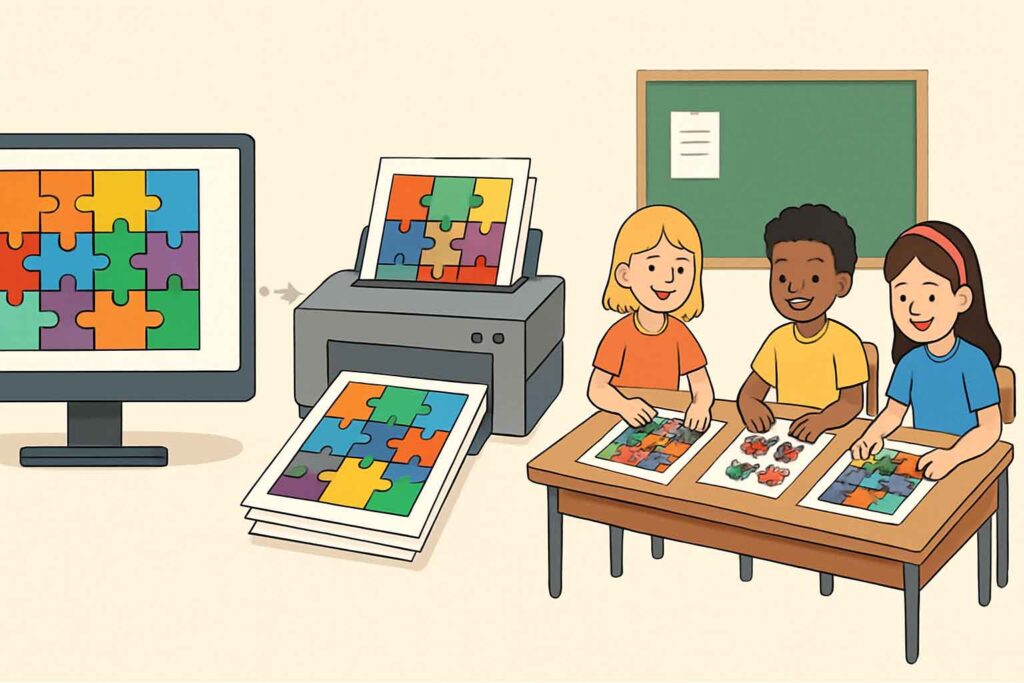
Digital puzzles are excellent educational resources, but sometimes you need physical materials for classroom activities. This tutorial will guide you through the process of transforming digital puzzle resources into high-quality printable activities that engage students and support learning objectives. Whether you’re working with word searches, crosswords, mazes, or other puzzle types, these steps will help you create classroom-ready materials.
What You’ll Need
•A computer with internet access
•Digital puzzle resources (either purchased or created)
•Image editing software (we’ll use free options)
•A printer (color preferred, but black and white works too)
•Basic office supplies (paper, scissors, laminating sheets if available)
Step 1: Select and Prepare Your Digital Puzzles
Choosing Appropriate Puzzles
Start by selecting digital puzzles that align with your learning objectives and are appropriate for your students’ age and skill level.
1.Evaluate the content: Ensure the puzzle content matches your curriculum goals
2.Check difficulty level: The puzzle should challenge students without frustrating them
3.Consider format: Some puzzle types convert to print better than others
4.Review visual clarity: Choose puzzles with clear, high-contrast elements that will print well
Accessing Your Digital Files
If you’ve purchased digital puzzles:
1.Locate your downloaded files (typically PDF or image formats)
2.Create a dedicated folder on your computer to organize these resources
3.Make backup copies of original files before making any modifications
If you’re using online puzzle resources:
1.Take screenshots of the puzzles (use Shift+Command+4 on Mac or Windows+Shift+S on PC)
2.Save the images in a dedicated folder with descriptive names
Step 2: Modify Puzzles for Classroom Use
Basic Adjustments Using Canva (Free Option)
1.Go to Canva.com and create a free account if you don’t have one
2.Click “Create a design” and select “US Letter” or “A4” depending on your standard paper size
3.Upload your puzzle image by clicking “Uploads” in the left sidebar and then “Upload media”
4.Drag your uploaded puzzle onto the blank page
5.Resize the puzzle to fit the page appropriately, leaving margins for printing
6.Add a title at the top of the page
7.Consider adding:
•Instructions for students
•Space for student name and date
•A difficulty rating
•Estimated completion time
•Curriculum connection note
Creating Answer Keys
Always create answer keys for your puzzles:
1.Duplicate your puzzle page in Canva by clicking the page thumbnail and selecting “Duplicate”
2.On the duplicate, add the solutions:
•For word searches: Circle or highlight the words
•For crosswords: Fill in the answers
•For matching activities: Draw connecting lines
3.Add “ANSWER KEY” prominently at the top
4.Consider using a different colored background to easily distinguish answer keys from puzzles
Step 3: Enhance Puzzles for Educational Value
Adding Learning Context
Transform a simple puzzle into a complete learning activity:
1.Create a header section with:
•Learning objective (“Students will identify…”)
•Vocabulary focus
•Curriculum standard reference
2.Add a pre-puzzle activity:
•Brief reading passage related to the puzzle content
•Discussion questions to activate prior knowledge
•Visual aids that connect to the puzzle theme
3.Include post-puzzle extension activities:
•Reflection questions
•Writing prompts
•Application challenges
Differentiation Options
Create variations of the same puzzle for differentiated instruction:
1.For struggling learners:
•Add a word bank
•Provide some answers as hints
•Reduce the number of items
•Increase font size for better readability
2.For advanced learners:
•Remove word banks
•Add more challenging vocabulary
•Include bonus puzzles or hidden messages
•Create connections to higher-level concepts
Step 4: Format for Printing
Optimizing Print Quality
1.Resolution: Ensure images are at least 300 DPI for clear printing
2.Contrast: Increase contrast slightly as printed materials often appear lighter
3.Borders: Add a thin border around puzzles to define the activity area
4.Font choice: Use sans-serif fonts (like Arial or Calibri) for better readability
5.Line weight: Make sure grid lines and boundaries are thick enough to remain visible when printed
Creating Print-Ready Files
1.In Canva, click the “Download” button in the top right
2.Select “PDF Print” as the file type for best quality
3.Check “Crop marks and bleed” if you plan to cut the pages
4.Download both the puzzle and answer key files
Step 5: Printing and Assembly
Printing Tips
1.Use slightly heavier paper (24-32 lb) for durability
2.Print a test copy first to check sizing and clarity
3.Adjust printer settings to “High Quality” or “Best”
4.If printing in black and white, check that all elements remain visible
Creating Durable Classroom Materials
For materials you’ll use repeatedly:
1.Lamination:
•Laminate printed puzzles for durability
•Use dry-erase markers to make puzzles reusable
•Consider self-sealing laminating pouches for quick processing
2.Alternative to lamination:
•Place puzzles in clear sheet protectors
•Bind multiple puzzles in a binder for a puzzle center
•Use clear contact paper for a budget-friendly option
3.Creating puzzle sets:
•Organize related puzzles by theme or difficulty
•Create a table of contents for easy reference
•Store in labeled folders or boxes
Step 6: Implementation in the Classroom
Effective Ways to Use Printed Puzzles
1.Warm-up activities: Use smaller puzzles as bell-ringers or class starters
2.Learning stations: Create puzzle stations for rotation activities
3.Assessment alternatives: Use puzzles as formative assessment tools
4.Early finisher activities: Keep a puzzle folder for students who complete other work
5.Collaborative learning: Cut larger puzzles into sections for group work
Tracking Student Progress
1.Create a simple tracking sheet to monitor which puzzles students have completed
2.Implement a self-checking system using answer keys in a designated area
3.Consider having students reflect on puzzle difficulty and learning after completion
Step 7: Digital-Physical Integration
Connecting Back to Digital Resources
Create a seamless connection between your printable puzzles and digital resources:
1.Add QR codes to printed puzzles that link to:
•Online extensions of the activity
•Related videos or resources
•Digital versions for home practice
2.Create a simple system for students to access both formats:
•Classroom website with downloadable versions
•Shared folder with digital copies
•Email option for students who need at-home access
Troubleshooting Common Issues
Print Quality Problems
•Issue: Fuzzy or pixelated images Solution: Increase resolution or recreate using vector graphics
•Issue: Colors print differently than on screen Solution: Use printer color calibration or adjust for more contrast
•Issue: Text too small or illegible Solution: Use minimum 12pt font for instructions, 14pt for puzzle content
Puzzle Conversion Challenges
•Issue: Interactive elements lost in print version Solution: Create alternative engagement methods (e.g., cutting and matching instead of drag-and-drop)
•Issue: Digital puzzle too complex for print format Solution: Break into multiple printed pages or simplify while maintaining learning objectives
Conclusion
Transforming digital puzzles into printable classroom activities allows you to leverage the best of both worlds—the convenience and interactivity of digital resources with the tangible, screen-free benefits of physical materials. By following these steps, you can create professional-quality educational resources that engage students and support your curriculum goals.
Remember that the most effective puzzles are those that clearly connect to learning objectives while providing an appropriate level of challenge and engagement. With practice, you’ll develop a valuable library of print resources that complement your digital teaching tools.
Additional Resources
•Canva.com – Free design tool for creating printable materials
•GIMP – Free image editing software for more advanced modifications
•PDF Escape – Free online PDF editor for minor adjustments